
Can You Tell if a Device was Picked Up? iOS Device Orientation Tracking in Forensics
In many investigations, understanding how a device was used can be just as important as what was accessed.
Artifacts like app usage, screen activity and network connections provide valuable insight, but they don’t always tell the full story. Especially in cases where a device is locked, idle or intentionally kept inactive.
Can we determine if an iOS device was physically handled, even when the screen was off?
By leveraging iOS Unified Logs, we can reconstruct physical device orientation over time, providing a new layer of behavioral insight.
Key Takeaways
- iOS Unified Logs capture physical device orientation independent of screen activity, providing a behavioral signal even when the screen was off.
- Orientation transitions are written by the backboard process within the CoreMotion framework in the Unified Logs, with precise timestamps and approximately one month of retention.
- Physical device orientation and display orientation are different signals and can tell different investigative stories. Analyzing both reveals whether a device was actively used or simply moved.
- Cellebrite Inseyets PA surfaces iOS physical device orientation as a Device Event starting in Decoding Engine 19.2
When Physical Device Orientation Becomes Forensically Relevant
Device orientation may seem like a small detail – but in the right context, it can be critical. For example, a driver claims they were not handling their phone during a car accident. Traditional artifacts show no app usage or screen interaction. However, the two entries below indicate the device’s physical orientation changed, which would warrant further investigation by investigators:
- The device transitions from face up → portrait → face up within seconds

What iOS Device Orientation Data Can Be Extracted from Unified Logs
The extracted data represents the physical position of the device, based on internal motion and proximity sensors
This includes states such as:
- Portrait
- Portrait Upside Down
- Landscape Left
- Landscape Right
- Face Up
- Face Down
These states reflect how the device is positioned in space, regardless of screen activity.
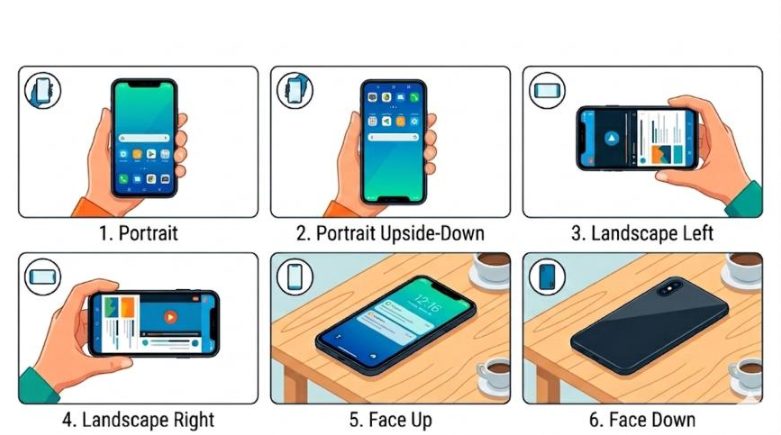
*Orientation is referenced to the side with the IR sensor.
Physical vs. Display Orientation – Why It Matters
It is important to distinguish between display orientation and physical device orientation, as they do not always reflect the same behavior.
Orientation changes such as those stored in KnowledgeC or Biome (Device.Display.InterfaceOrientation stream) reflect the way content is displayed on the screen. In contrast, physical device orientation reflects how the device is positioned in space. For instance, when a user switches a video to full screen, the display may shift to landscape orientation, even though the physical position of the device may not change. Conversely, when the device is on the lockscreen or home screen, rotating the phone alters its physical orientation while the display remains unchanged.
Consider the following scenario:
- A device is initially held in portrait orientation with auto-rotate enabled, and a video is playing.
- The user rotates the phone to landscape, causing the video display to shift accordingly.
- The user then places the phone flat on a table (face up), while the video continues playing in full-screen mode.
- Next, the user exits full-screen mode on the video, but the device remains lying flat on the table (face up).
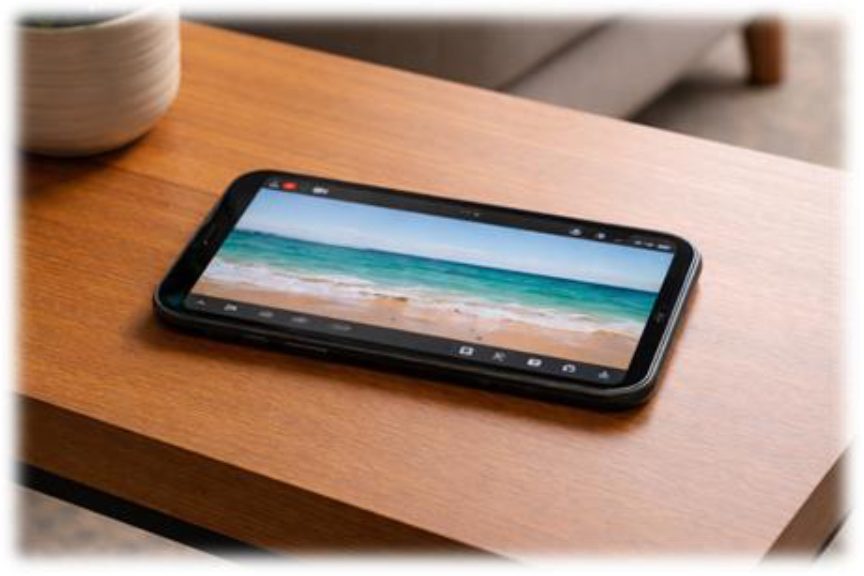
In this case, we’ll observe the following:
- Display orientation = Portrait → Landscape → Portrait (Biome/ KnowledgeC)
- Physical orientation = Portrait → Landscape → Face Up (Unified Logs)
And in PA:

From an investigative perspective, this distinction is critical.
Display orientation may suggest user interaction, while physical orientation can suggest device handling. By analyzing both together, examiners can better determine whether a device was actively used or simply left untouched.
Where iOS Device Orientation Data Lives in Unified Logs
iOS Unified Logs contain a wide range of system-level events generated by various components across the operating system; motion-related events are one example.
The relevant data originates from the Backboardd process, in the CoreMotion framework.
These logs:
- Record orientation transitions (e.g., FaceUp → Portrait)
- Are consistently written across device models and iOS versions
- Provide precise timestamps for each change
- The retention period is approximately one month.
Understanding Unified Logs
iOS Unified Logs are a centralized logging system used by the operating system and applications to record system activity. These logs are generated by both Apple components and third-party apps, covering a wide range of events – from device state changes to network activity and system interactions.
Each log entry contains structured metadata, including a precise timestamp, process and library information, subsystem identifiers, and a human-readable message describing the event. This structured format enables examiners to correlate low-level system events with user behavior at a very granular level.
On disk, Unified Logs are stored in a binary format across multiple files, primarily under:
- /private/var/db/diagnostics/
- /private/var/db/uuidtext/
The core format (commonly known as tracev3) is optimized for performance and compression, meaning the data must be parsed and reconstructed to become readable.
Because these logs are generated continuously by the system, they provide a rich historical record of device behavior, including low-level events such as device orientation changes derived from motion sensors.
Understanding the Logs
There are two primary log types that hold information about an iOS device’s physical orientation: Orientation Transition and Orientation Update.
They were chosen because they:
- Capture all orientation changes
- Are independent of screen rotation or UI behavior
- Provide consistent coverage across devices
The logs are defined as:
Orientation Transition – “Received orientation. ({string} to {string})”
For example: Received orientation (FaceUp to Portrait)
Orientation Update – “Updating device orientation from CoreMotion to: {string}”
For Example: Updating device orientation from CoreMotion to portrait (1)
How iOS Device Orientation Appears in Cellebrite Inseyets PA
Starting Decoding Engine 19.2 device orientation is presented as a Device Event:
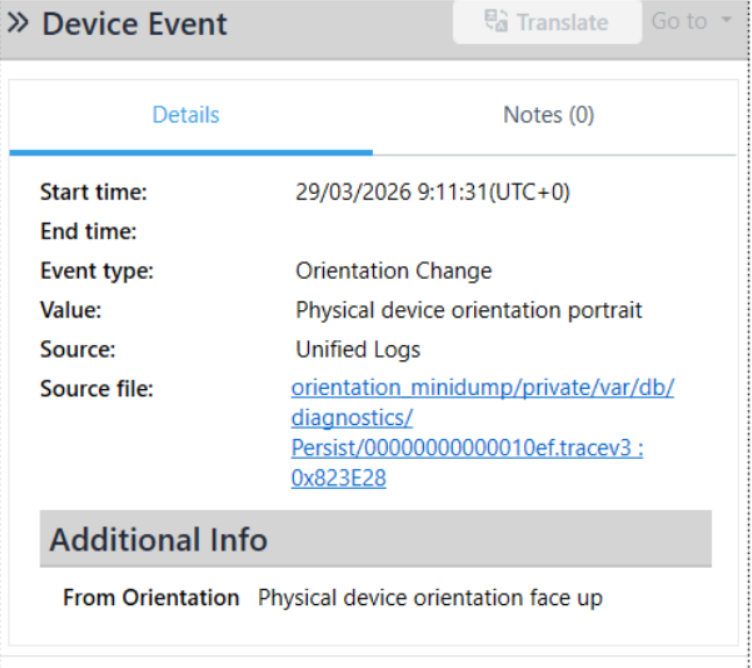
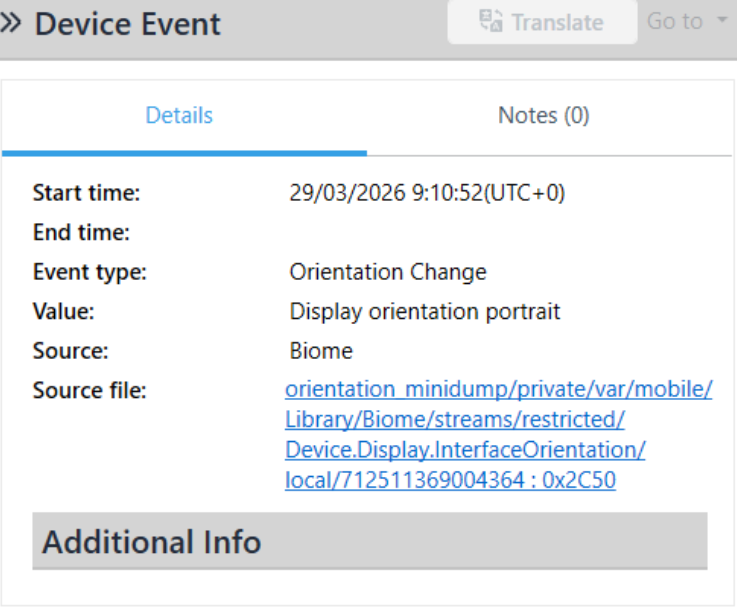
While display orientation changes are presented like this:
Wrap-Up
Physical device orientation provides a unique perspective into how an iOS device was handled, even in situations where traditional usage artifacts are absent. By analyzing orientation events recorded in Unified Logs, investigators can identify moments when a device was moved, picked up, rotated, or placed down, helping to reconstruct user behavior with greater confidence. When combined with other forensic artifacts such as display orientation, screen activity, and application usage, device orientation data adds valuable context that can strengthen timelines and support investigative findings.